
Quick answer: IFERROR replaces any standard Excel error with a chosen fallback, IFNA replaces only #N/A, and ISERROR simply returns TRUE or FALSE when a value is an error. Use IFNA for an expected missing lookup; use an explicit denominator check for divide-by-zero; use ISERROR when you want to flag rather than hide a broken formula. A neat-looking spreadsheet is not necessarily an accurate one.
The goal of error handling is to preserve meaningful distinctions. A missing customer ID, a formula referring to a deleted column and a division with a zero denominator need different responses. This decision-focused guide follows the practical Excel logic topics in our training series and works alongside, rather than repeats, our Excel IF tutorial.
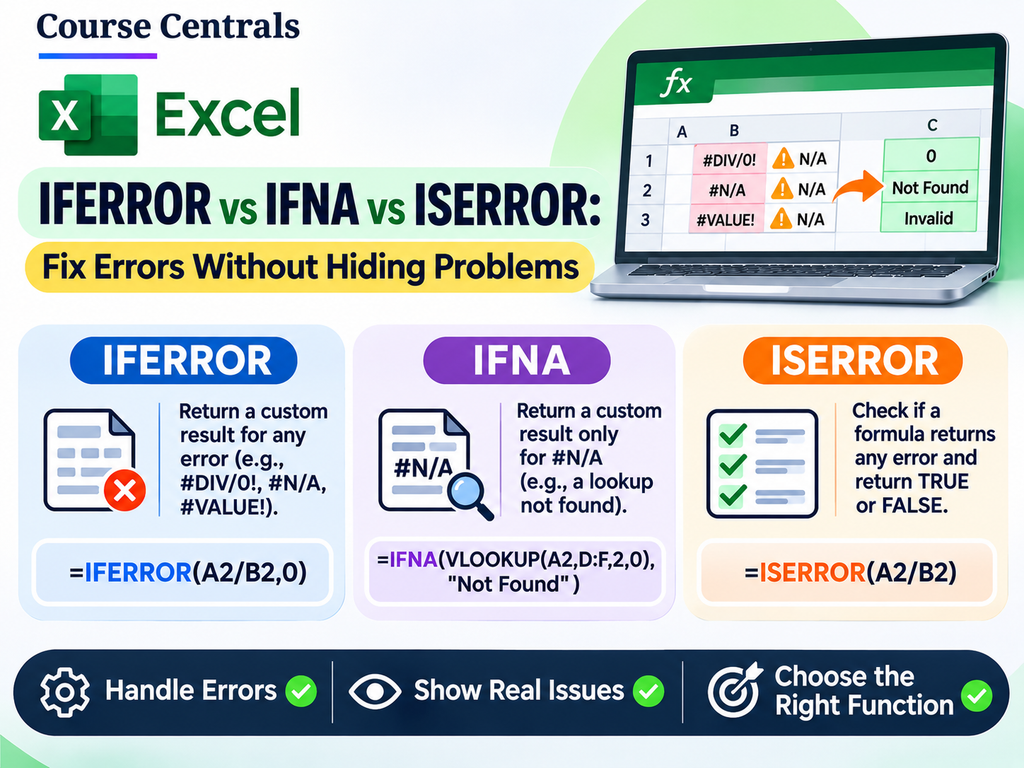
IFERROR vs IFNA vs ISERROR: comparison table
| Function | Syntax | Handles | Best use | Risk if misused |
|---|---|---|---|---|
| IFERROR | =IFERROR(value,fallback) | Every standard Excel error, including #N/A, #REF!, #DIV/0!, #VALUE! and #NAME? | Fallback for an error that is acceptable in a known scenario | Can disguise genuine formula defects |
| IFNA | =IFNA(value,fallback) | Only #N/A | Expected lookup not found | Does not correct lookup mistakes or broken data |
| ISERROR | =ISERROR(value) | Tests any error; gives TRUE/FALSE | Flag exceptions for review, audit, or conditional formatting | Returns a Boolean, not a repaired value |
| ISNA | =ISNA(value) | Tests only #N/A; gives TRUE/FALSE | Check missing-match cases specifically | Confusing it with IFNA |
1. IFERROR: broad protection, broad risk
=IFERROR(D2/E2,"Calculation unavailable")If E2 is zero, the underlying division produces #DIV/0!, so IFERROR displays “Calculation unavailable.” It also displays the same message if D2 is text, a reference is broken or a function is misspelled. Those failures do not mean the same thing. For important financial or operational calculations, show the reason a calculation is unavailable rather than quietly substituting zero.
=IF(E2=0,"No target",D2/E2)The second formula tests the expected exceptional case directly. It does not suppress other unexpected errors. If E2 could be blank, text or negative, add a suitable input validation rule as well. Returning zero for “no target” can skew an average or sum, so a text status may be more honest.
2. IFNA: handle missing lookups without disguising #REF!
Imagine a list in A2:B20: column A stores product IDs and column B stores assigned teams. You look up the ID in E2. For older Excel versions with VLOOKUP, write:
=IFNA(VLOOKUP(E2,$A$2:$B$20,2,FALSE),"ID not found")If the ID is missing, VLOOKUP returns #N/A and IFNA shows a clear message. If someone changes the returned column index from 2 to 3, VLOOKUP may return #REF!; IFNA preserves that serious error. IFERROR would display “ID not found,” misleading you into thinking that valid data was missing.
For Excel versions supporting XLOOKUP, its fourth argument already supplies a not-found result: =XLOOKUP(E2,$A$2:$A$20,$B$2:$B$20,"ID not found"). This is often clearer than wrapping the whole lookup. Review our XLOOKUP examples and VLOOKUP error guide for the lookup mechanics.
3. ISERROR: flag a problem instead of hiding it
=ISERROR(F2)
=IF(ISERROR(F2),"Check formula",F2)
The first formula returns TRUE when F2 is an error. The second displays a diagnostic label while keeping the original calculation in F2 available for inspection. This is useful in data-quality checks, where the audit trail matters more than a cosmetically clean summary.
What actually happens for the most common Excel errors?
| Underlying problem | Typical Excel error | IFERROR(…,”Fallback”) | IFNA(…,”Fallback”) | Recommended action |
|---|---|---|---|---|
| Lookup value missing | #N/A | Fallback | Fallback | Confirm that missing match is expected |
| Zero denominator | #DIV/0! | Fallback | Still #DIV/0! | Check divisor explicitly and label unavailable |
| Invalid text in arithmetic | #VALUE! | Fallback | Still #VALUE! | Fix data type, don’t call it not found |
| Deleted/broken reference | #REF! | Fallback | Still #REF! | Repair references before reporting |
| Misspelled function | #NAME? | Fallback | Still #NAME? | Correct formula or installed-version compatibility |
| Ordinary valid value | No error | Original result | Original result | No change needed |
A ten-minute audit exercise
Create a small learner project using a fictional online-course enrolment sheet. Make columns for Learner ID, Course, Fee, Discount, Final Fee and Status. Add four test rows with: a valid ID, a missing ID, a zero original fee and a deliberately broken return-column index. First show raw formulas, then compare IFERROR, IFNA and an explicit condition. Your objective is to identify which problems should be handled, which should be investigated and which should remain visible.
| Test | Formula to try | Expected lesson |
|---|---|---|
| Valid ID exists | =IFNA(VLOOKUP(E2,$A$2:$B$20,2,FALSE),”Missing”) | Return normal matching value |
| ID absent | =IFNA(VLOOKUP(E3,$A$2:$B$20,2,FALSE),”Missing”) | Return only the expected not-found label |
| Bad column index | =IFNA(VLOOKUP(E2,$A$2:$B$20,3,FALSE),”Missing”) | Leave #REF! visible for repair |
| Divide by zero | =IF(F2=0,”No denominator”,G2/F2) | Explicitly communicate a missing denominator |
Five rules for production-ready Excel error handling
- Decide what an error means before deciding what text or number should replace it.
- Use IFNA or XLOOKUP’s not-found argument for expected missing matches.
- Do not replace every reporting error with zero: a zero can look like a real business result.
- Keep an audit or diagnostic column when calculations affect important decisions.
- Test wrong types, missing rows, exact zeros, broken references and version-incompatible functions.
Frequently asked questions
Does IFERROR handle #N/A?
Yes. IFERROR handles #N/A and other standard Excel error types. IFNA handles #N/A specifically.
Why would I prefer IFNA over IFERROR for a lookup?
IFNA does not hide a broken reference, calculation or invalid formula that produces an error other than #N/A.
What is the difference between ISERROR and IFERROR?
ISERROR tests and returns TRUE or FALSE. IFERROR returns the underlying result or replaces an error with a value you specify.
Is IFERROR(…,0) always safe?
No. A zero substituted for missing or corrupt data may flow into totals, averages and business decisions as though it were a valid observation.
Related Course Centrals guides and sources
Extend the lesson with 12 practical Excel IF examples, VLOOKUP error fixes, XLOOKUP examples and the Excel functions hub.
Source review: Microsoft IFERROR, Microsoft IFNA, and Microsoft’s Excel function reference. Examples are original training scenarios.