
Quick answer: Build an Excel HR bonus calculator by separating eligibility from sales tier. Use AND to check attendance and service, IFS to assign A/B/C sales tiers, SWITCH to turn tiers into commission rates and IF to calculate bonus amounts. Put thresholds in editable cells instead of hard-coding them, and test employees who fall exactly on the cutoffs. The free, original Course Centrals practice workbook accompanies this tutorial and includes fictional staff records, editable rules, formula results and a ten-case test checklist.
This is an educational spreadsheet project, not payroll, tax or employment advice. The sample bonus policy is fictional. The approach is useful for learners practicing Excel logical functions in HR, operations or sales reporting, but real compensation systems require approved policies, auditing, validation and access controls.
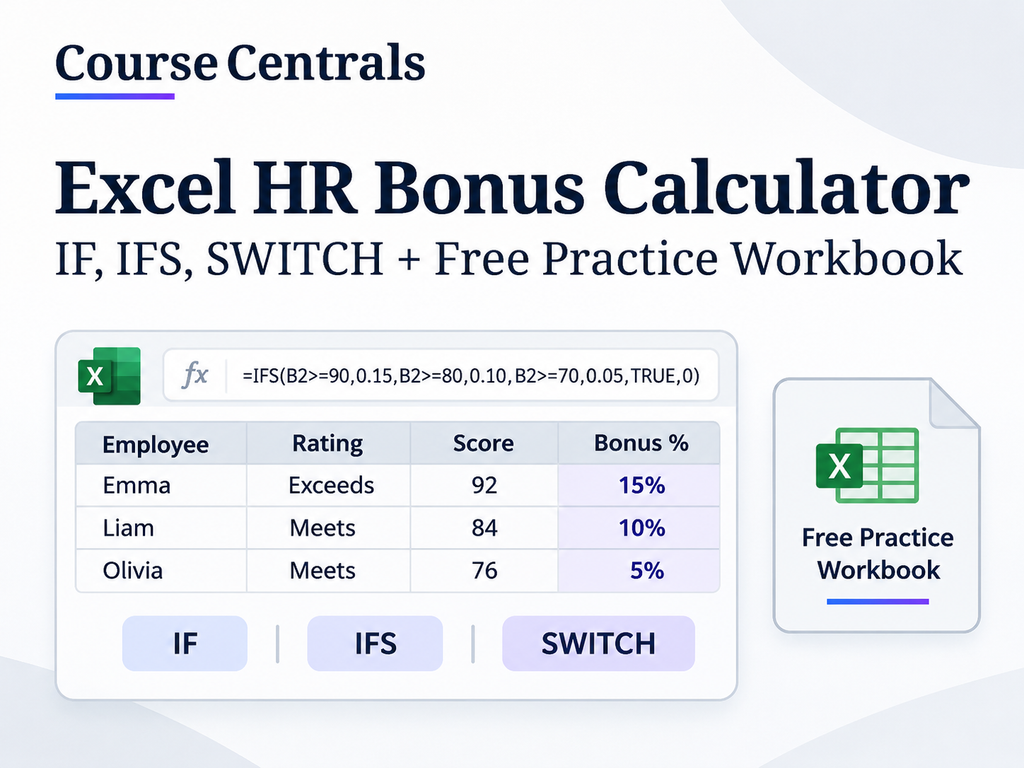
What the free practice workbook contains
| Sheet | What it does | Your exercise |
|---|---|---|
| Start Here | Instructions, key formula definitions and Microsoft references | Read the rules and follow the steps |
| Rules | Editable attendance, service, tier and bonus-rate thresholds | Change 90% to 95% attendance and inspect the result |
| Staff | 10 fictional staff records and calculated bonus columns | Review eligibility, sales tier, rate and bonus |
| Test Cases | Ten exact-boundary and error scenarios | Confirm expected outcomes without guessing |
1. Define your bonus rules before writing formulas
| Rule | Example value | Interpretation |
|---|---|---|
| Minimum attendance | 90% | Employee must meet or exceed it |
| Minimum years of service | 1 | Newer employees are ineligible |
| Tier A sales threshold | 3,000 | At or above 3,000 |
| Tier B sales threshold | 2,000 | 2,000 to 2,999.99 |
| Tier A commission | 10% | Percent of sales if eligible |
| Tier B commission | 5% | Percent of sales if eligible |
| Tier C commission | 0% | Below Tier B |
| Long-service extra | 200 | Only eligible staff with at least five years |
Our example requires both attendance of at least 90% and one year of service. An employee can be in Tier A for sales but still be ineligible for a bonus. This distinction prevents a common modelling mistake: using sales performance as if it were the same as eligibility.
2. Create the input table
Use the Staff worksheet with columns: A = Staff ID, B = Employee, C = Department, D = Sales, E = Attendance, F = Years, G = Eligible, H = Tier, I = Rate, J = Sales bonus, K = Service bonus, L = Total bonus and M = Input check. In the supplied workbook, the sample starts on row 7, and the editable rules are on the Rules sheet.
| Employee | Sales | Attendance | Years |
|---|---|---|---|
| Maya | 3,800 | 96% | 3 |
| Jamal | 2,450 | 91% | 7 |
| Aisha | 1,850 | 93% | 2 |
| Noah | 3,175 | 89% | 5 |
| Lina | 2,000 | 90% | 1 |
| Omar | 3,000 | 97% | 6 |
Enter attendance as an actual Excel percentage such as 96%, not text. Check that sales and years are numeric. A formula that references the wrong data type can produce misleading results even when Excel does not show an error.
3. Check eligibility with AND
=AND(M7="OK",E7>=Rules!$B$4,F7>=Rules!$B$5)The formula is TRUE only when the input check is OK, attendance meets the threshold and the person has enough years of service. Use absolute references such as Rules!$B$4 so copying the formula down does not change the threshold cell. For simpler practice without an input checker, the core logic is =AND(E7>=90%,F7>=1).
4. Assign a tier using IFS
=IFS(D7>=Rules!$B$7,"A",D7>=Rules!$B$8,"B",TRUE,"C")Excel evaluates IFS from left to right and returns the first matching result. With the example thresholds, a salesperson at exactly 3,000 belongs to A, exactly 2,000 belongs to B and 1,999 belongs to C. Always put the highest threshold first when using multiple >= comparisons. Ending with TRUE,"C" supplies a default when neither threshold matches.
Excel compatibility: IFS is available in Excel 2019, Excel 2021, Excel 2024 and Microsoft 365. If you use an older Excel release, an equivalent nested IF works: =IF(D7>=3000,"A",IF(D7>=2000,"B","C")).
5. Map the tier to a commission rate using SWITCH
=SWITCH(H7,"A",Rules!$B$10,"B",Rules!$B$11,"C",Rules!$B$12,0)SWITCH works for matching a single exact code to a result. A returns 10%, B returns 5%, C returns 0%, and the last zero is a default for an unknown code. SWITCH is for exact matches, not testing which numeric range is larger. Its supported Excel versions broadly match IFS, including Excel 2019+ and Microsoft 365.
6. Calculate the base bonus and the long-service extra
Sales bonus: =IF(G7,D7*I7,0)
Service extra: =IF(AND(G7,F7>=Rules!$B$6),Rules!$B$13,0)
Total bonus: =SUM(J7:K7)
We deliberately require eligibility for the additional service payment. Without that check, a person who fails attendance could receive the fixed extra for years of service. If a real organization’s policy pays service awards independently, rewrite the rule explicitly and test it. Do not infer a policy from a screenshot or copied formula.
7. Verify expected results, including edge cases
| Case | Expected result | Reason |
|---|---|---|
| Maya: 3,800 sales, 96% attendance, 3 years | 380.00 | Tier A at 10%, no service extra |
| Jamal: 2,450 sales, 91%, 7 years | 322.50 | 2,450 × 5% + 200 |
| Lina: 2,000 sales, 90%, 1 year | 100.00 | Exactly on both thresholds |
| Omar: 3,000 sales, 97%, 6 years | 500.00 | 3,000 × 10% + 200 |
| Noah: 3,175 sales, 89%, 5 years | 0.00 | Ineligible despite a high sales tier |
| Negative sales or attendance of 108% | Review inputs | Invalid data must be flagged |
The supplied workbook independently checks the full ten-row dataset. The expected overall bonus total with default settings is 1,640.00, with six? No: seven employees eligible (Maya, Jamal, Aisha, Lina, Omar, Hassan and Priya), of whom some receive zero under Tier C. Always distinguish eligibility counts from people receiving a positive payment.
8. Make the spreadsheet safer with validation
- Restrict Attendance to a decimal from 0 to 1, formatted as a percentage, using Data > Data Validation.
- Restrict Years to a nonnegative number and Sales to nonnegative numeric values.
- Add an Input check column to flag missing, negative or over-100% percentages.
- Apply conditional formatting to highlight invalid inputs and ineligible rows. Keep formula-driven cells visually distinct from editable inputs.
- Retest whenever you change a threshold. A bonus model that works at 2,500 can still be wrong at exactly 2,000 or 3,000.
9. Interview-style questions for Excel practice
Why use IFS rather than nested IF?
IFS represents several threshold/result pairs more readably, although order still matters and a large number of conditions can become hard to audit. An external rate table may be easier to maintain if there are many tiers.
Why separate eligibility, tier, rate and bonus?
Each intermediate column makes a business decision visible and testable. If an output looks wrong, you can identify whether the problem comes from the eligibility rule, the sales threshold, the rate mapping or the amount calculation.
Can I use this for real employee pay?
Not without rewriting it for your approved compensation policy, reviewing data protection and employment requirements, and testing every boundary with controlled inputs. The dataset and numbers are fictional.
Learn more on Course Centrals
Start with Excel IF with practical examples, then study SUMIFS to total eligible amounts by team and COUNTIFS to count employees meeting multiple conditions. Our Excel formulas hub connects the wider set of functions.
Official documentation and fact checking
Verified 14 November 2026. Formula syntax and version compatibility were cross-checked with primary Microsoft documentation. This tutorial and its workbook are original educational material inspired by a broader logical-functions learning topic, not a reproduction of any social-media notes.
- Microsoft IF function
- Microsoft IFS function
- Microsoft SWITCH function
- Microsoft using IF with AND, OR and NOT
- Microsoft data validation