
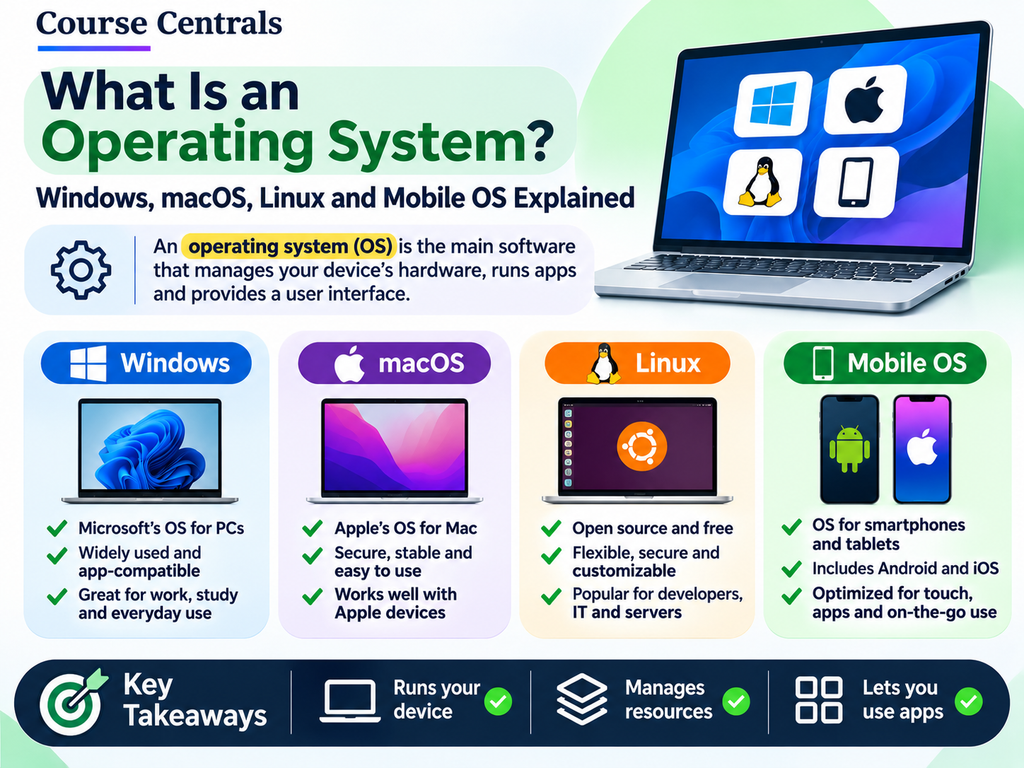
what is an operating system? When you turn on a laptop, the operating system helps you sign in, open apps, connect to Wi-Fi and save files. Without an operating system, most everyday computer tasks would require much more technical work. This guide explains what the operating system does and how common systems compare.
What does an operating system do?
An operating system, or OS, is system software that coordinates hardware resources and provides services and interfaces for programs and users. It is not the same thing as a browser or a word processor. Those are applications that run on top of the OS.
- Process management: organizes running programs and their use of the processor.
- Memory management: allocates working memory to active programs.
- File management: organizes stored data and folders through file systems.
- Device management: uses drivers and services to communicate with keyboards, printers and other devices.
- User and security management: controls accounts, authentication and access permissions.
- Networking: supports connections to the internet and other devices.
Common operating systems
| Operating system | Common devices | Useful beginner note |
|---|---|---|
| Windows | Many desktop and laptop PCs | Uses File Explorer and Settings for everyday file and device management |
| macOS | Apple Mac computers | Uses Finder to work with files and folders |
| Linux | Desktops, servers and embedded devices | Comes in different distributions, such as Ubuntu and Fedora |
| ChromeOS | Chromebooks | Emphasizes web applications and cloud-connected workflows |
| Android | Many smartphones and tablets | A mobile operating system with app and permissions management |
| iOS | Apple iPhones | Provides mobile apps, system settings and device security |
Operating system versus application
Think of the OS as the system that keeps a workspace running. An application is the tool you use for a specific job. Windows is an operating system; Microsoft Word is an application. macOS is an operating system; Safari is an application. An operating system and its installed apps are both software, but they serve different roles.
What happens when you open an application?
- You select an app icon or a file associated with an app.
- The operating system locates the necessary program files and loads required components.
- Memory is allocated, and the processor executes the program’s instructions.
- The application displays its interface through the OS and graphics system.
- When you save a document, the program and OS work together to write data to storage.
GUI versus CLI
A graphical user interface (GUI) uses windows, menus and icons. A command-line interface (CLI) lets you type commands. Both can be useful, and many systems support both. Beginners should feel comfortable with files and settings in the graphical interface before tackling advanced command-line activities.
How to check which OS you have
On Windows 11, open Settings > System > About for system information. On macOS, open the Apple menu and choose About This Mac. On mobile devices, OS details are usually found in a Settings section called About or Device Information. Menu labels may differ by version.
Beginner maintenance and security checklist
- Install supported security updates regularly.
- Use a lock screen and individual user accounts when appropriate.
- Install apps from trustworthy sources.
- Check remaining storage space if updates or downloads fail.
- Back up your important documents before making major system changes.
Choose your next learning resource
Recommended structured courses
These optional courses are offered by established learning platforms and build on the free explanations and exercises in this guide. Consider a paid course only if structured lessons or a certificate fit your goals.
| Course and provider | What you will learn and access model |
|---|---|
| Introduction to Hardware and Operating Systems Coursera · IBM | Practical hardware components, Windows/macOS/Linux basics, peripherals and troubleshooting; paid certificate access options. |
| Google IT Support Professional Certificate Coursera · Google | A longer entry-level IT support pathway covering operating systems, hardware and troubleshooting; subscription/certificate access. |
| Basic Computer Skills: Hands-On Training for Beginners Udemy · Todd McLeod | Desktop navigation, keyboard shortcuts, organizing files, device settings and practical exercises; paid individual course. |
Which should you choose? For Windows day-to-day tasks choose Udemy; for understanding multiple OSs choose IBM; for an IT-support career explore Google’s longer certificate.
Transparency: These are currently ordinary, untracked course links. Course Centrals earns no referral commission from them at present. If we join the providers’ affiliate programs, qualifying links may later be replaced with disclosed affiliate tracking links. Prices and certificate eligibility depend on your country and the provider’s current checkout terms.
Free: Explore self-paced Microsoft Learn modules and your OS vendor’s official help documentation.
Paid course for operating-system fundamentals: IBM: Introduction to Hardware and Operating Systems (Coursera). It covers multiple operating systems and related hardware concepts.
Longer IT career pathway: Google IT Support Professional Certificate (Coursera) includes operating-system and technical support topics.
Hands-on Windows practice: LinkedIn Learning: Windows 11 Essential Training is a subscription-based training option.
Start at Computer Basics for Beginners, then practice Windows keyboard shortcuts and explore RAM vs ROM vs Storage.
Course access note: Prices, trials, certificate eligibility and course availability vary by country and can change. The links above point to course providers, not confirmed affiliate checkout links. Recheck access terms before purchase.