
Microsoft Access is a desktop database application for storing related records in tables and using queries, forms and reports to work with them. Beginners can learn the fundamentals through Microsoft’s free support tutorials, then build a small database to understand why Access is different from Excel. The tutorials are free to read; using the Access desktop software may require a qualifying Microsoft 365 plan, standalone purchase or existing institutional license.
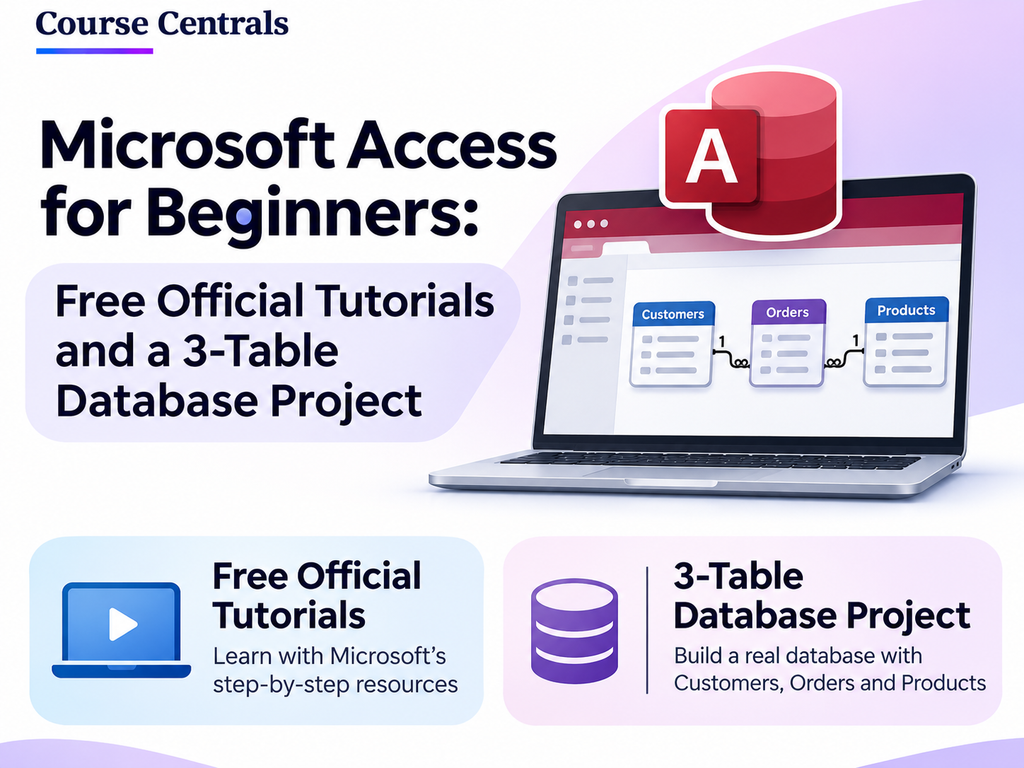
What can you learn in Microsoft Access?
| Concept | Plain-English meaning | Our project example |
|---|---|---|
| Table | A collection of one kind of record | Students, Courses, Enrollments |
| Field | A named attribute or column | StudentName, CourseTitle |
| Primary key | A unique record identifier | StudentID |
| Foreign key | A field referring to another table’s key | Enrollments.StudentID |
| Relationship | Rule connecting records across tables | One student can have many enrollments |
| Query | A question asked of stored data | Which students joined the SQL course? |
| Form | An easier interface for entering or editing records | Student entry form |
| Report | A printable or shareable structured summary | Enrollments by course |
Where can you learn Access for free?
Microsoft’s official Create an Access desktop database lesson covers starting from a template or a blank database. Its basic database tasks guide explains adding tables and data. The relationships guide explains referential integrity and linking tables, while query, form and report training shows the main output tools.
These are official learning resources, not proof that the Access application itself is free. Microsoft’s help pages list Access for Microsoft 365, Access 2024, Access 2021, Access 2019 and Access 2016 as supported contexts for the referenced desktop tasks. Check the exact application edition and device you have before following along.
Original practice project: student enrollment database
Build a small fictional college enrollment database. It answers a practical question: Which learners are enrolled in which courses, without repeating the student’s name on every enrollment row? Use invented data only. Never upload real student details into a public tutorial.
Step 1: Create three tables
Open Access, select Blank desktop database, name it StudentEnrollmentPractice.accdb and create the following tables. In Design View, use the field types shown below. The IDs in this exercise are explicit numeric values, not AutoNumber, to make sample imports predictable.
| Table | Fields | Primary key |
|---|---|---|
| Students | StudentID (Number, Long Integer); StudentName (Short Text); Country (Short Text) | StudentID |
| Courses | CourseID (Number, Long Integer); CourseTitle (Short Text); Hours (Number) | CourseID |
| Enrollments | EnrollmentID (Number, Long Integer); StudentID (Number, Long Integer); CourseID (Number, Long Integer); EnrollDate (Date/Time) | EnrollmentID |
For each ID, make sure it is unique within its primary table. For this small project, keep the sample values below exactly as written.
Step 2: Enter the fictional records
Students
| StudentID | StudentName | Country |
|---|---|---|
| 1 | Amira Khan | UAE |
| 2 | Daniel Mensah | Ghana |
| 3 | Sofia Reyes | Philippines |
Courses
| CourseID | CourseTitle | Hours |
|---|---|---|
| 10 | Excel Foundations | 12 |
| 20 | SQL Basics | 16 |
| 30 | Python Introduction | 20 |
Enrollments
| EnrollmentID | StudentID | CourseID | EnrollDate |
|---|---|---|---|
| 101 | 1 | 10 | 2026-11-01 |
| 102 | 1 | 20 | 2026-11-02 |
| 103 | 2 | 20 | 2026-11-02 |
| 104 | 3 | 30 | 2026-11-03 |
Step 3: Define relationships and prevent orphan records
Choose Database Tools > Relationships, add all three tables, then connect Students.StudentID to Enrollments.StudentID and Courses.CourseID to Enrollments.CourseID. Enable Enforce Referential Integrity for both. Keep cascade delete off for this exercise so removing a student with enrollments cannot silently delete their enrollment history. Both foreign key fields should be Number with Long Integer field size to match the parent keys.
Try entering an enrollment for StudentID = 99. With referential integrity enabled, Access should reject the row because no matching student exists. That failed insert is the point of the exercise. Microsoft’s relationship documentation explains the rule.
Step 4: Run your first multi-table query
Choose Create > Query Design, add the three tables, and check the join lines. Switch to SQL View and use:
SELECT Students.StudentName, Courses.CourseTitle, Enrollments.EnrollDate
FROM (Students INNER JOIN Enrollments
  ON Students.StudentID = Enrollments.StudentID)
INNER JOIN Courses
  ON Enrollments.CourseID = Courses.CourseID
ORDER BY Students.StudentName, Courses.CourseTitle;
Expected output: four rows. Amira appears twice, once for Excel Foundations and once for SQL Basics; Daniel appears for SQL Basics; Sofia appears for Python Introduction. This confirms that the same student can enroll in several courses without copying her name into the Enrollments table.
Step 5: Answer a business question with an aggregate query
How many students are enrolled in each course? Save a new query with:
SELECT Courses.CourseTitle,
  Count(Enrollments.EnrollmentID) AS EnrollmentCount
FROM Courses LEFT JOIN Enrollments
  ON Courses.CourseID = Enrollments.CourseID
GROUP BY Courses.CourseTitle
ORDER BY Courses.CourseTitle;
Expected results: Excel Foundations = 1, SQL Basics = 2, Python Introduction = 1. A LEFT JOIN also keeps a course visible if it has no enrollments. The counts refer to enrollment records; in a larger database, duplicate enrollments would need a separate business rule.
Step 6: Create an entry form and a summary report
Select Students and use Create > Form or Form Wizard to build a student-entry form. Test adding a fictional learner. Then select your aggregate query and use Create > Report Wizard to create a course enrollment report. Rename the saved objects frmStudents and rptEnrollmentsByCourse. Microsoft’s official training explains the interface.
What should you check if the project fails?
| Problem | Likely reason | Fix |
|---|---|---|
| Cannot create relationship | Field types or sizes differ | Match Long Integer keys on both sides |
| Duplicate key error | Repeated primary key value | Give each record a unique ID |
| Query returns no rows | Missing parent data or incorrect joins | Check Students, Courses and Enrollments values |
| Query returns repeated students | One student has multiple enrollments | Expected for a one-to-many relationship |
| Unexpected deletions | Cascade delete was enabled | Review relationships before deleting data |
Access vs Excel vs SQL: what should you learn first?
Excel is usually easier for quick analysis, formulas and small reports. Access is useful when you need a desktop interface around multiple related tables, forms and reports. SQL is a language for querying relational data and is relevant far beyond Access. They are not mutually exclusive: Access can use SQL queries, and Excel can connect to external data.
For broader learning decisions, read Excel vs SQL vs Python and our free SQL practice websites guide. For spreadsheet skills, start with the Excel formulas hub.
Is there an official Microsoft Access certification?
Microsoft Learn lists Exam MO-500: Microsoft Access Expert (Office 2019) as an assessment of database design, tables, relationships, forms, reports and queries. This is an exam-based credential, not a free certificate you receive merely by reading Microsoft Support articles. Microsoft lists country-dependent exam pricing and the exam as one of the possible Expert exams in the broader MOS Expert pathway. Check the official MOS Expert requirements before paying or making a certification plan.
Frequently asked questions
Can I learn Microsoft Access for free?
Yes. Microsoft publishes free Access help and training. Running the desktop application may require licensed software.
Is Access the same as Excel?
No. Excel is a spreadsheet; Access is designed around relational tables, queries, forms and reports. You can use both in one workflow.
Do I need to know SQL before learning Access?
No. Access provides visual query tools. Basic SQL becomes useful as you progress, especially for more complex queries and transferable database skills.
Why use a separate Enrollments table?
It models a many-to-many relationship: one student can take multiple courses and one course can have multiple students. Storing this relationship separately avoids repeating student and course details.
Does finishing this tutorial give a Microsoft certificate?
No. It is an independent practice project. Microsoft credentials have separate assessment requirements.
Official references and editorial limitations
- Microsoft: create a desktop database
- Microsoft: basic Access database tasks
- Microsoft: relationships and referential integrity
- Microsoft: queries, forms and reports
- Microsoft Learn: MOS Expert / MO-500